How to Install HW Goodwin Script for Hero Wars — Complete Setup Guide
HW Goodwin is an advanced automation script for Hero Wars that optimizes your gameplay — from auto-running dungeons and collecting rewards to battle simulations and Asgard calculations. Follow this guide to install and launch the script in minutes.
📋 What You’ll Need Before You Start HW Goodwin
| Component | Description |
|---|---|
| 🌐 Browser | Chrome, Firefox, Safari, Edge, or Opera |
| 🔧 Script Manager | Tampermonkey, Violentmonkey, or Userscripts |
| ⚙️ Developer Mode | Must be enabled in your browser’s extension settings |
| 🎮 Hero Wars Account | An open game tab |
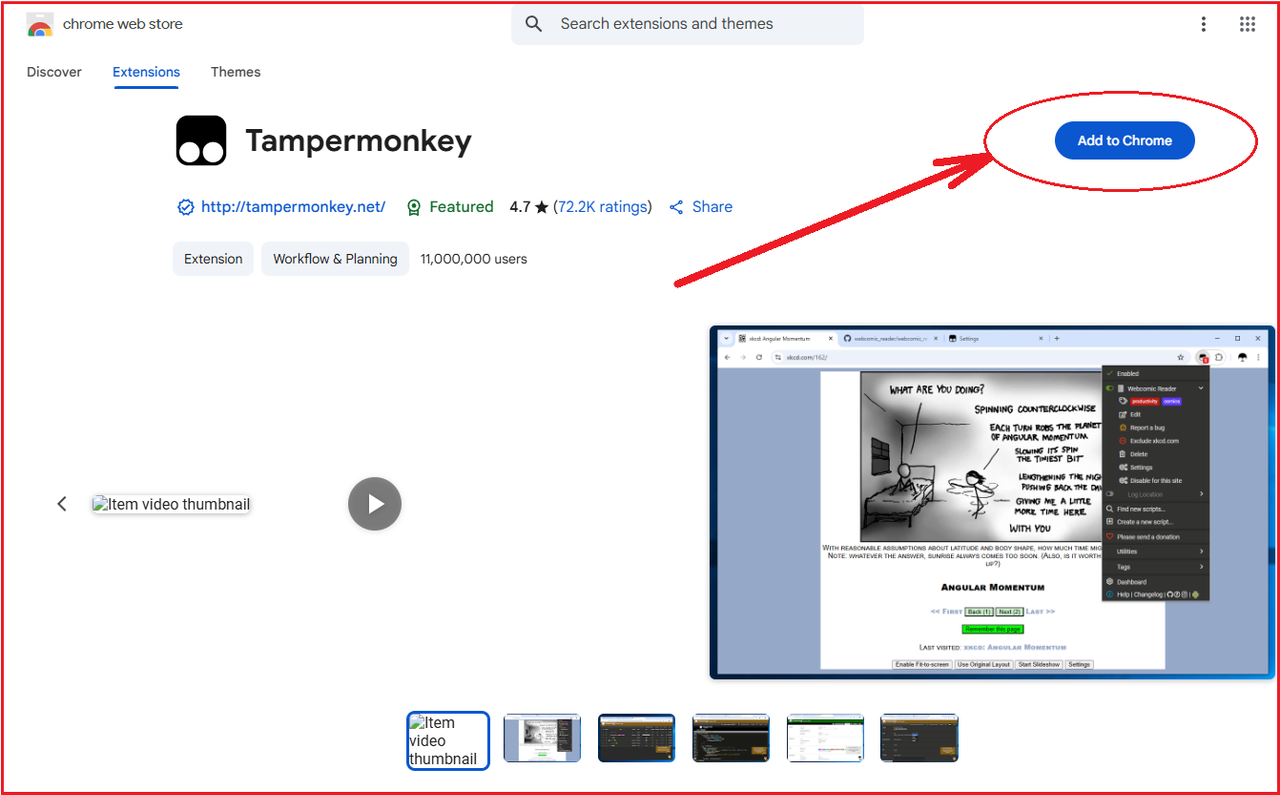
🔧 Step 1. Install a Script Manager
HW Goodwin runs through a userscript manager. Choose the one that fits your browser:
| Browser | Recommended Manager | Alternative |
|---|---|---|
| Google Chrome | Tampermonkey | Violentmonkey |
| Mozilla Firefox | Tampermonkey | Violentmonkey |
| Safari | Tampermonkey | Userscripts |
| Microsoft Edge | Tampermonkey | Violentmonkey |
| Opera | Tampermonkey | Violentmonkey |
💡 Tip: Tampermonkey is the most popular and stable option. We recommend using it.
📥 Step 2. Install the HW Goodwin Script
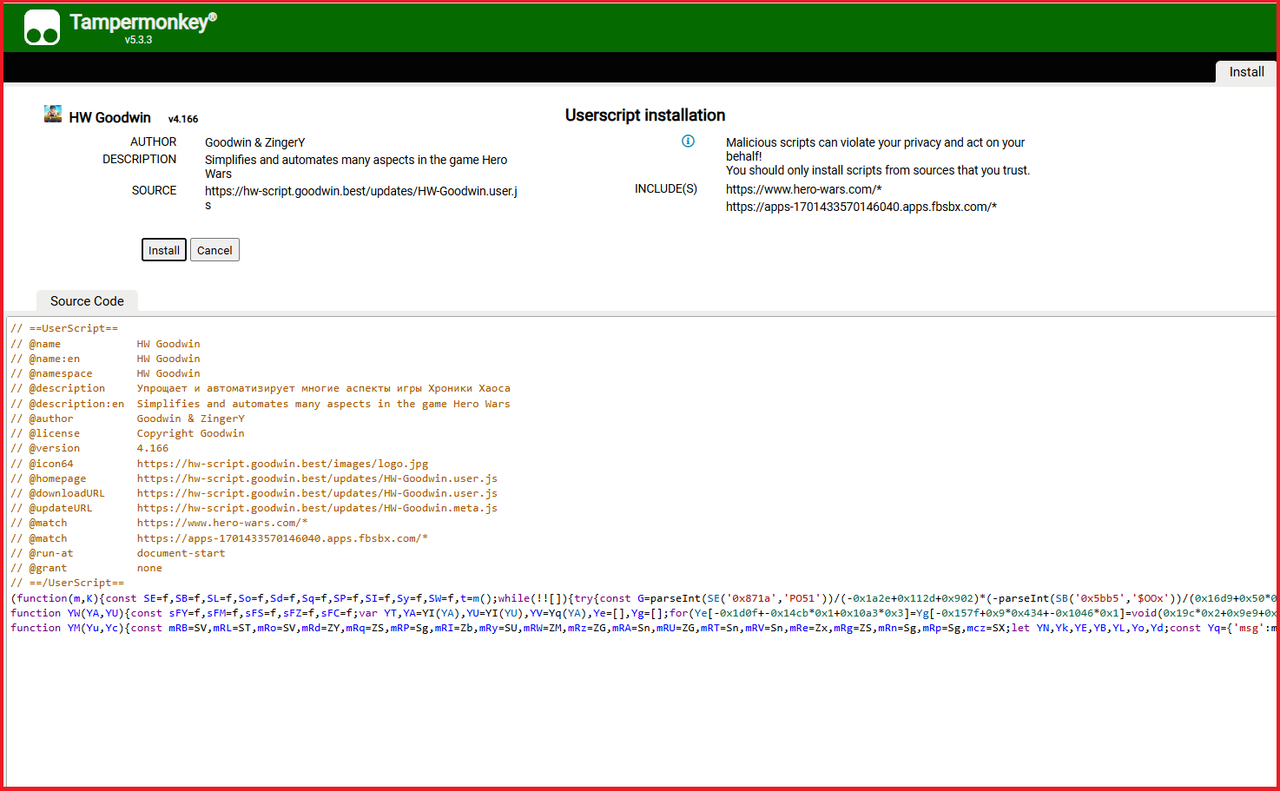
After installing your script manager, click or paste one of the following links into your browser’s address bar:
- Switzerland: http://switzerland.goodwin.best/updates/HW-Goodwin.user.js
- Finland: http://finland.goodwin.best/updates/HW-Goodwin.user.js
- Russia: http://russia.goodwin.best/updates/HW-Goodwin.user.js
How to install:
- Copy one of the links above
- Paste it into the address bar of the browser where the script manager is installed
- A Tampermonkey/Violentmonkey window will open showing the script code
- Click the “Install” button
✅ Note: The script updates automatically — you don’t need to reinstall it when new versions are released.
⚙️ Step 3. Enable Developer Mode
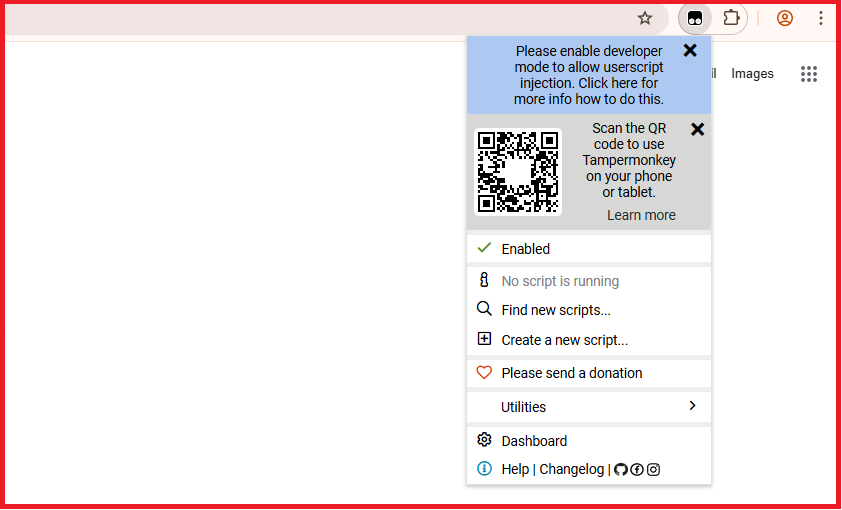
This is a mandatory step for the script to work correctly.
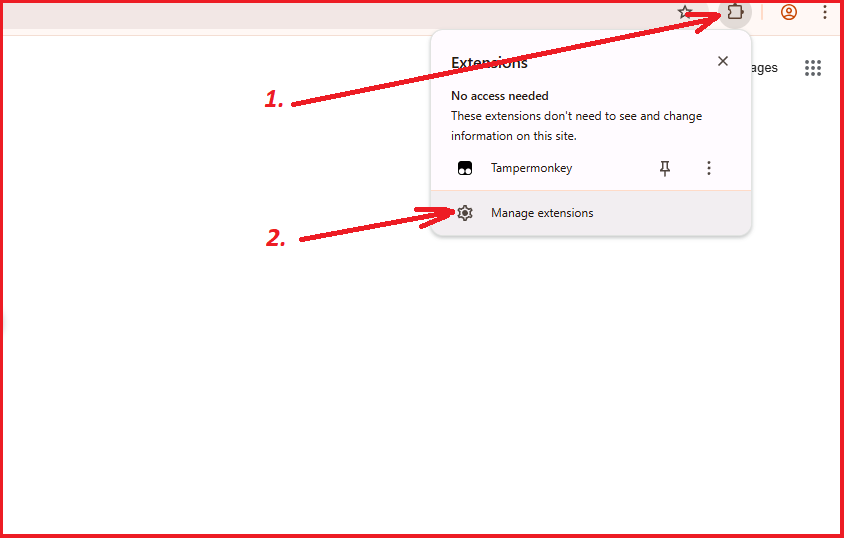
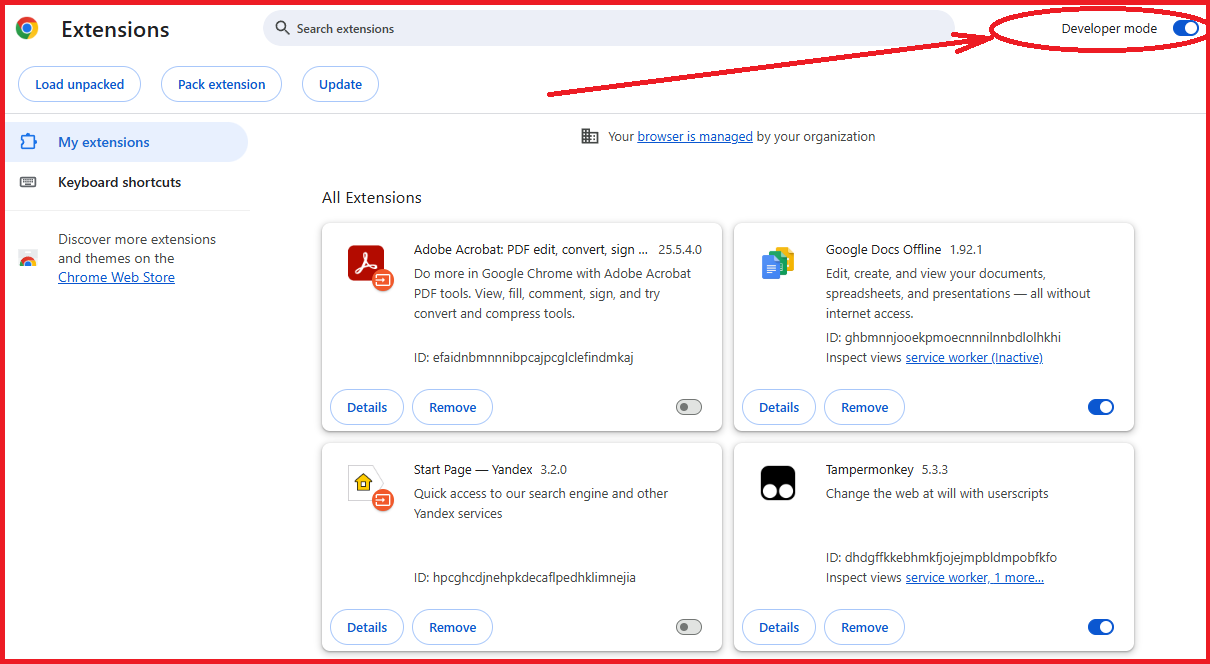
For Chrome / Edge / Opera:
- Go to chrome://extensions/ (or edge://extensions/, opera://extensions/)
- Toggle the “Developer mode” switch in the top-right corner
For Firefox:
- Open
about:config - Ensure extension-related settings are enabled (usually not required for Tampermonkey)
For Safari:
- Open Safari Settings → Extensions
- Make sure Tampermonkey/Userscripts is activated
🚀 Step 4. Setup and Start HW Goodwin
⚠️ Important: Disable Conflicting Scripts!
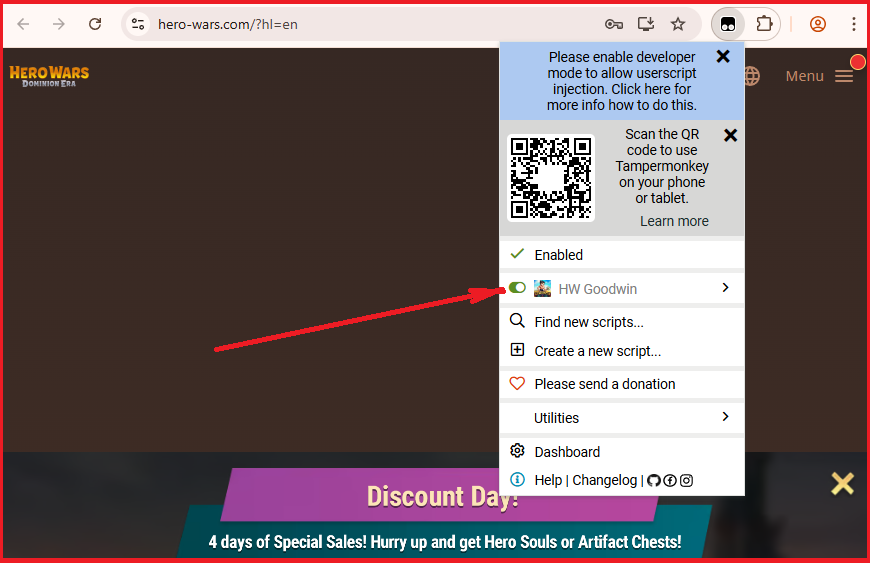
Before launching, make sure all other Hero Wars scripts and extensions are turned off. Scripts like HWS or other bots may conflict with HW Goodwin.
- Open your Hero Wars game tab
- Disable all other Hero Wars scripts/extensions in your script manager
- Reload the game tab (F5 or Ctrl+R / Cmd+R)
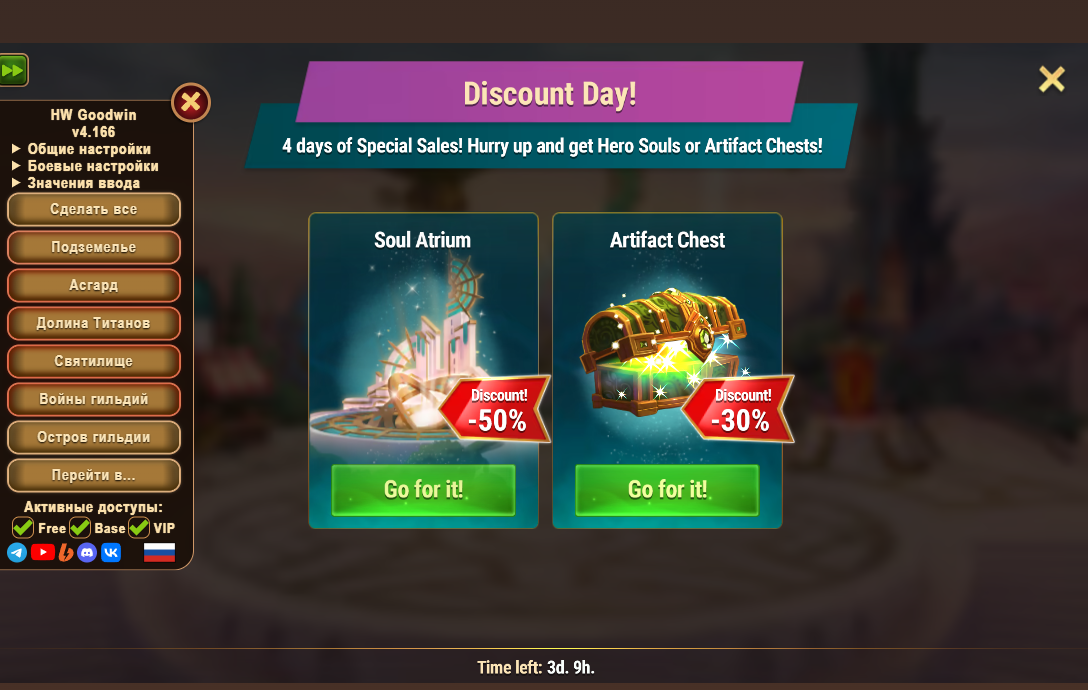
- After reloading, the HW Goodwin menu will appear on the left side of the screen 🎉
What Can HW Goodwin Do?
Once installed, the script unlocks a powerful set of automation features for Hero Wars:
- ⚔️ Battle Simulation — Instant calculations for Guild Wars, Clash of Worlds, and Asgard battles
- 🏔️ Asgard & Tower of Oblivion — Auto-calculation of optimal sequences for maximum boss damage (Osh, Maestro)
- 🗝️ Auto-Dungeons — Automatic dungeon door clearing, delivering up to 6,500+ titanite per day
- 🎁 Auto-Rewards — Automatic collection of daily rewards and resources
- 🥊 Auto-Brawl — Automatic Brawl event progression with configurable warning settings
Safety Tips & Best Practices
- Never use multiple scripts simultaneously. This is the main cause of bugs and conflicts.
- Don’t minimize the game tab during active automation — some features require an active tab.
- Check your settings before launching. Make sure automation parameters match your current goals.
Troubleshooting
- Script menu doesn’t appear? Check if Developer Mode is enabled in your browser and script manager, then reload the page.
- Script conflicts with the game? Disable all other Hero Wars scripts and extensions, then reload the game tab.
- Auto-update doesn’t work? Check Tampermonkey settings → “Update mode” and ensure it is enabled.
- Features run slowly? Close unnecessary tabs and check your CPU usage.
- Installation error? Try a different server link (Switzerland, Finland, or Russia).
🎮 You’re all set! Enjoy an optimized Hero Wars experience with HW Goodwin. Good luck in battle! ⚔️